Kineo vs Ravetree
Ravetree is all-in-one project management software for many kinds of teams, with project financials, CRM, resource planning, file approvals that clients can join, and AI summaries that use your firm's own API key. Kineo is built for engineering and architecture firms. It reviews drawing sets against your checklists, bills each phase from the contract with QuickBooks Online as the ledger, gives every project its own email address, and lets its assistant, your automations, and Claude or ChatGPT work on the same records.
Free for 14 days, with every feature included.
- Compared
- Kineo and Ravetree
- Published by
- Kineo
- Ravetree details
- Checked October 2026
Which one fits your firm
Choose Ravetree if you want
- Agile boards, waterfall plans, and Gantt charts with dependencies for many kinds of work
- Resource planning and forecasting across projects
- A CRM pipeline, estimates, retainers, and purchase orders in the same tool
- Staged file approvals, with clients reviewing through a client portal
- AI summaries of work items using your own API key with Anthropic, Google, OpenAI, or xAI
- Invoices synced with QuickBooks Online or Xero, and a Stripe integration for payments
- Integrations with HubSpot, Google Drive, Dropbox, Box, OneDrive, and GitHub, and an open API
Choose Kineo if you want
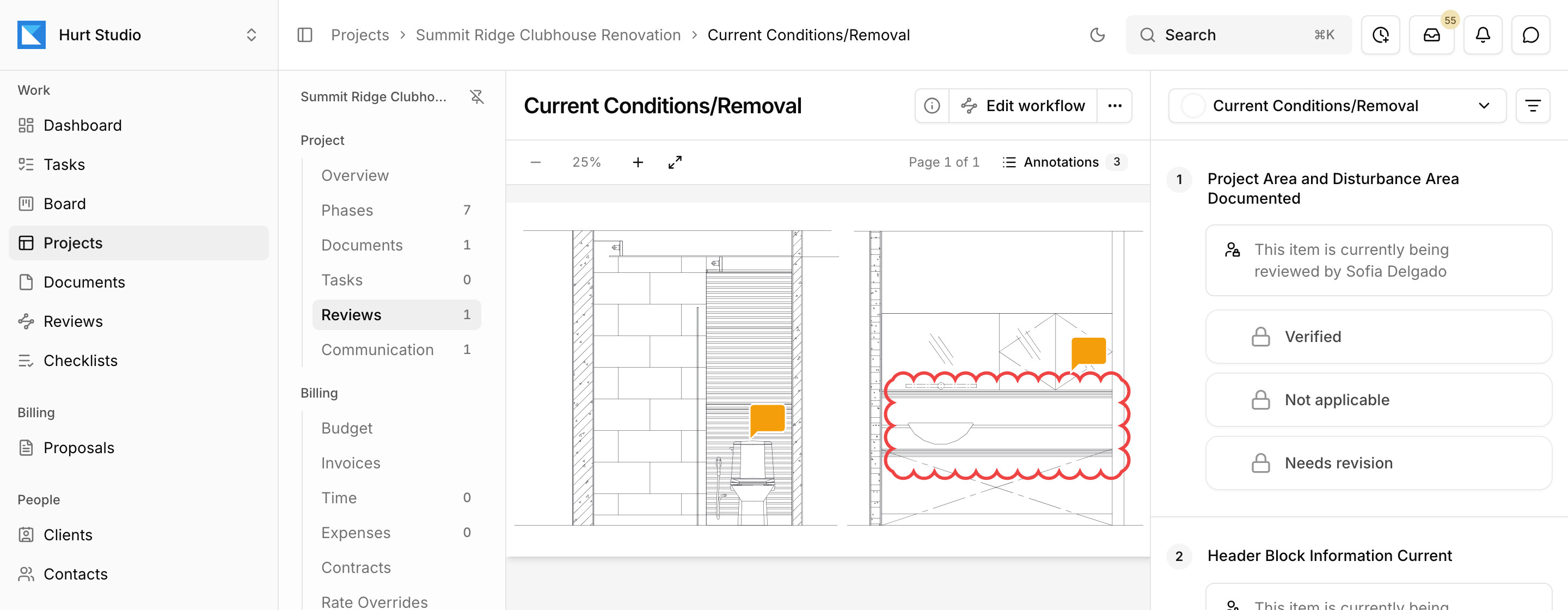
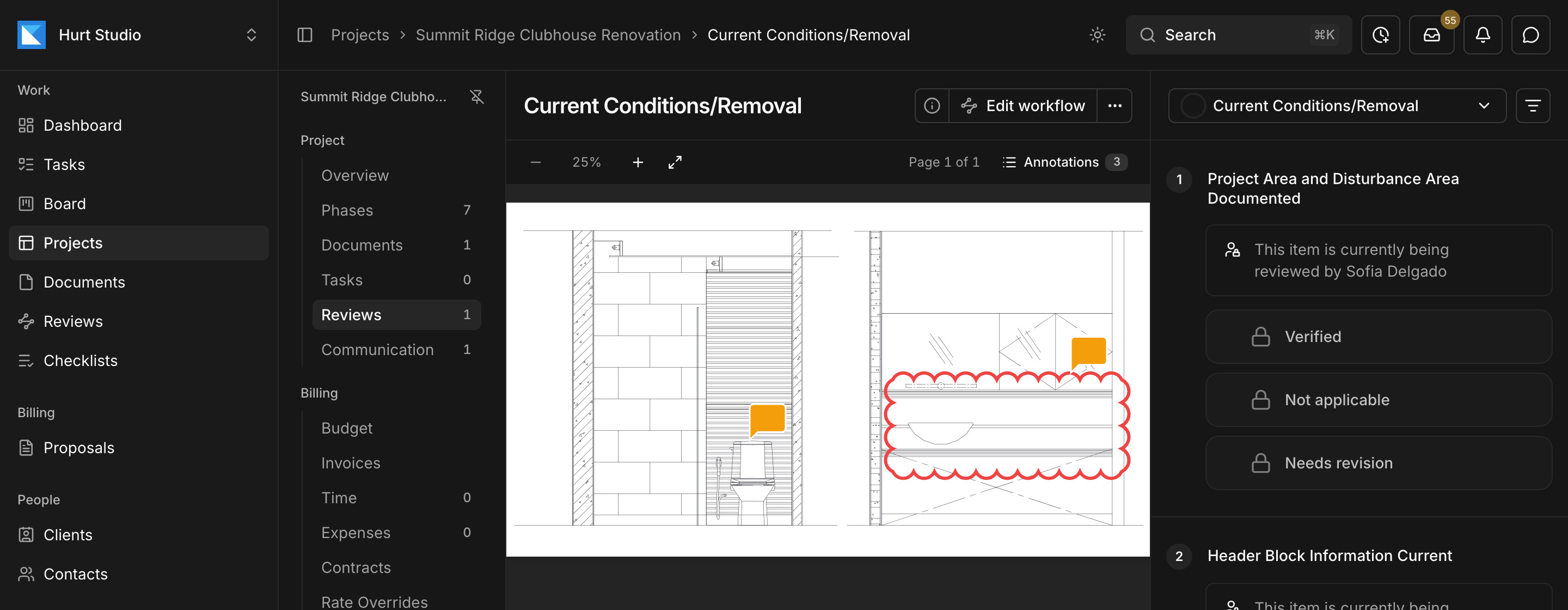
- Drawing reviews against your firm's checklists, with each markup filed under the item it answers and outside reviewers by link
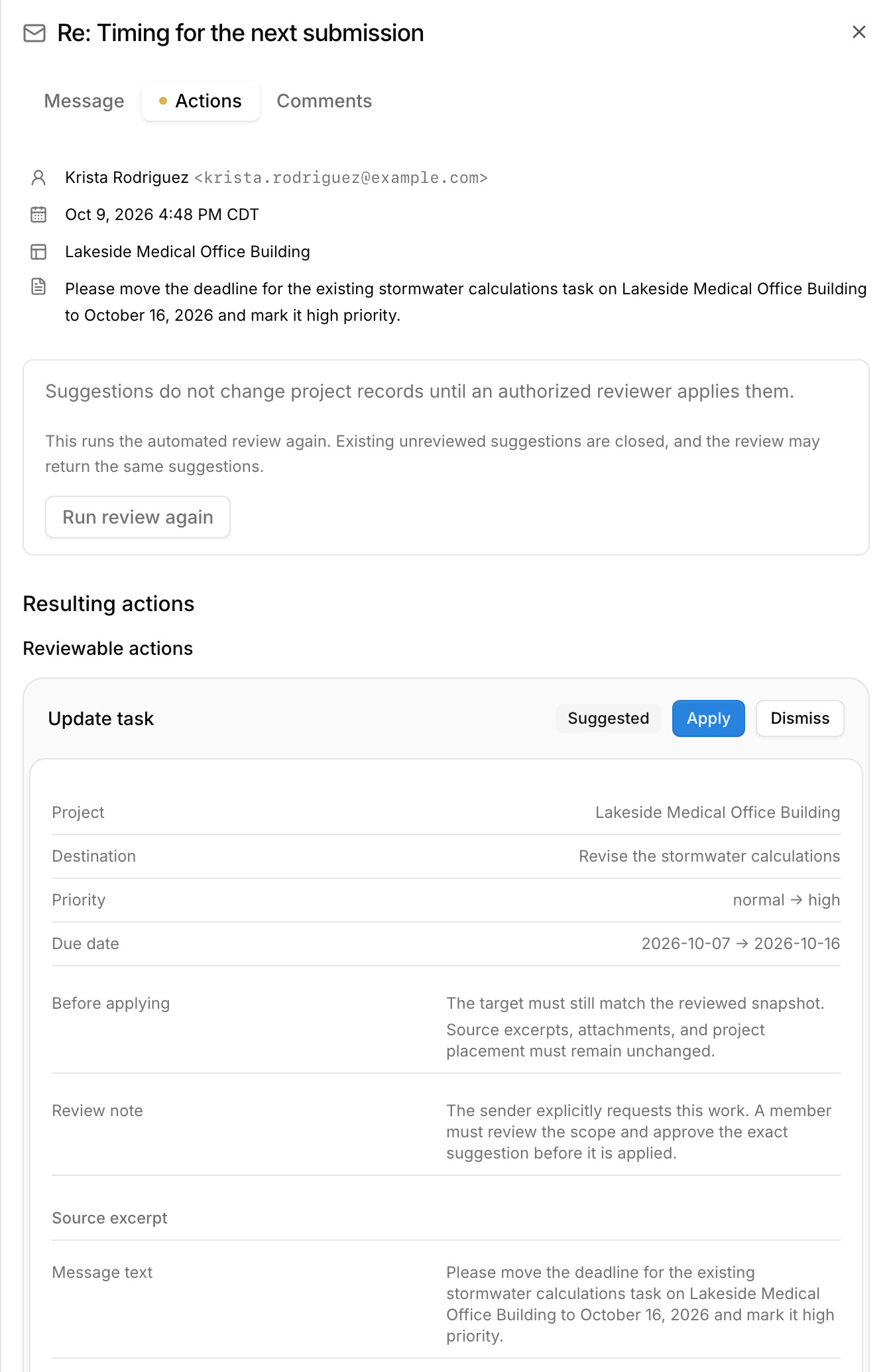
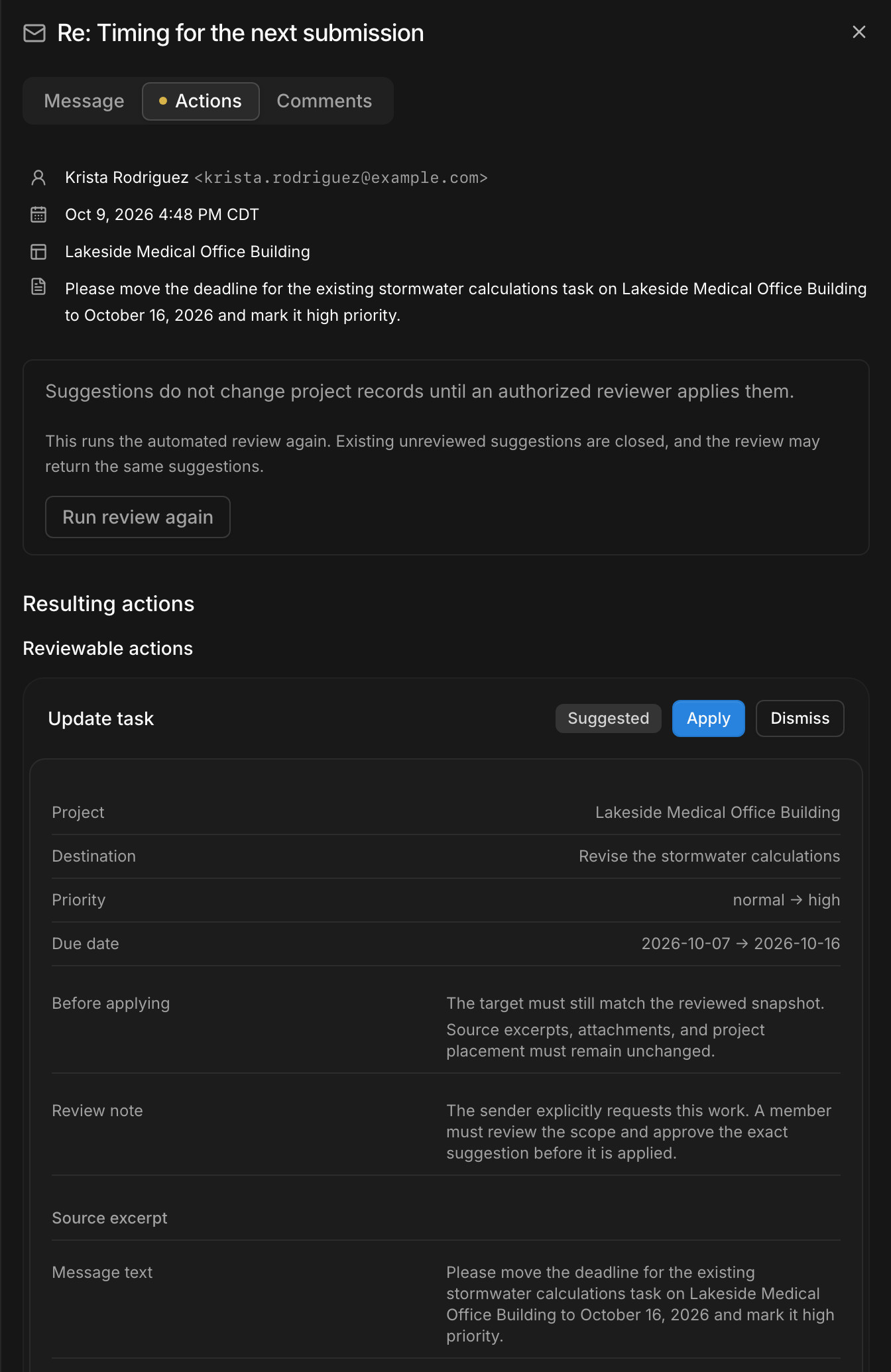
- An email address for each project, client, and contact, with imported mail feeding suggestions and automations
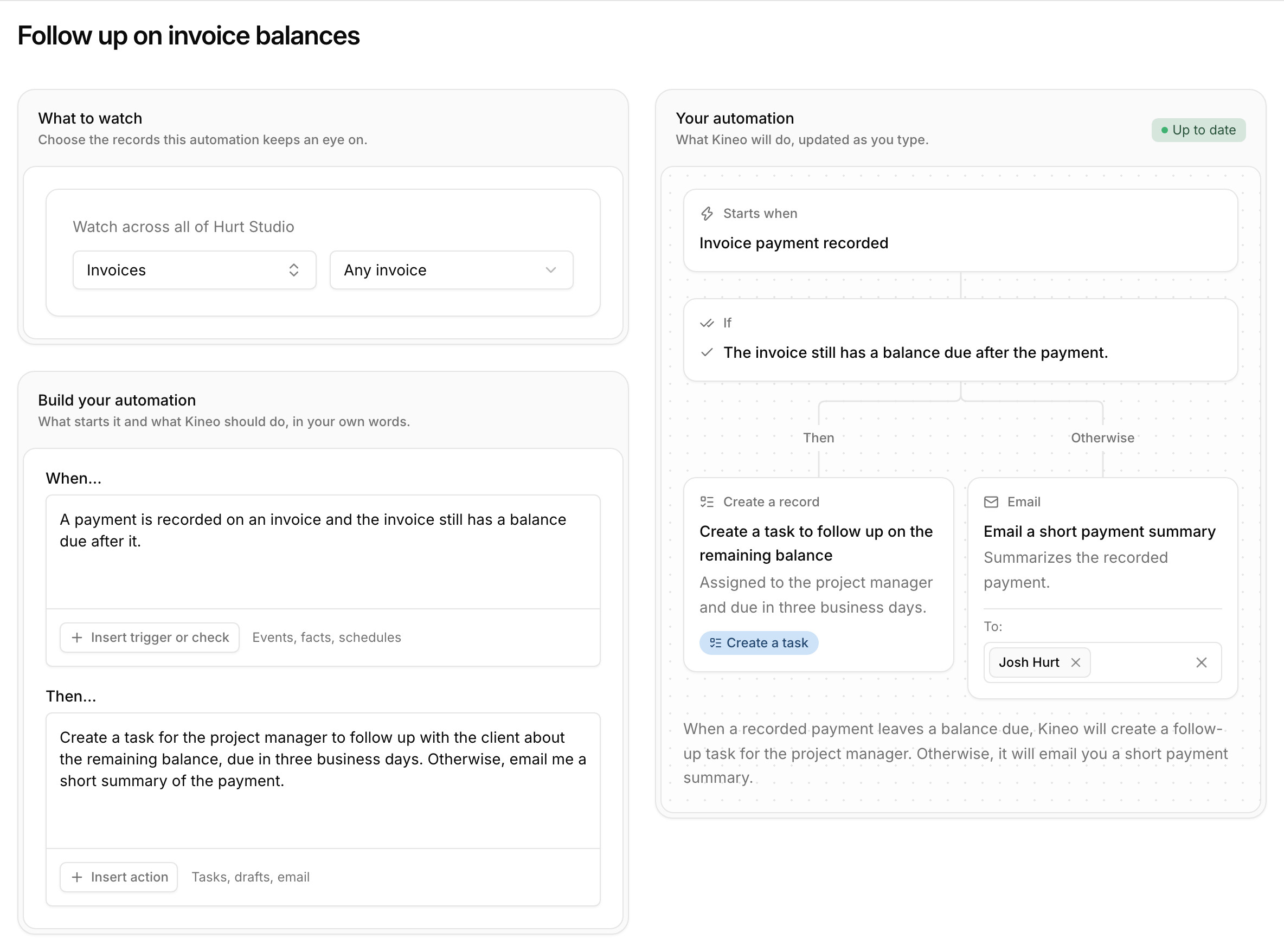
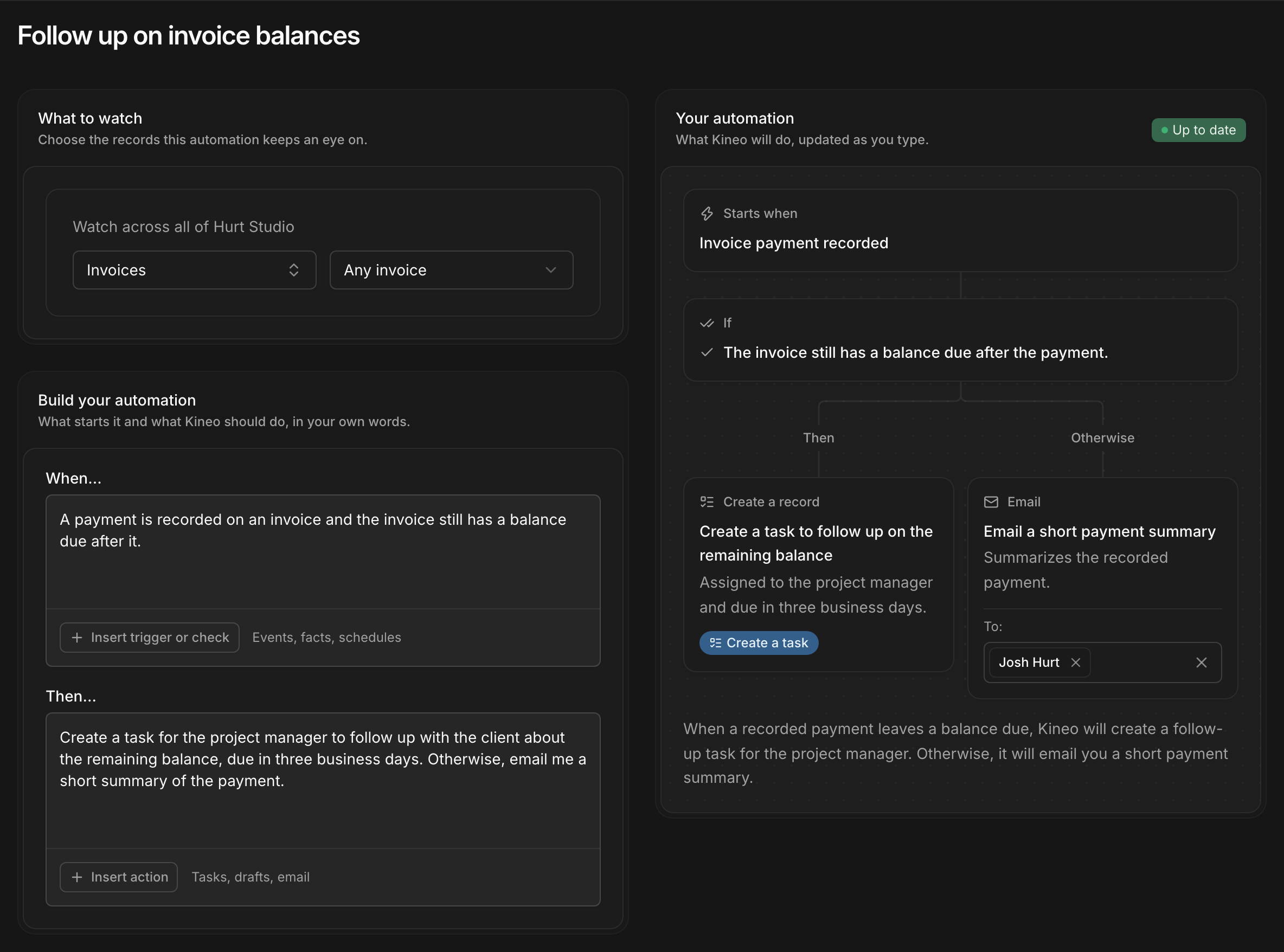
- Automations you describe in plain language, like drafting a change order when a client asks for extra work
- An assistant that drafts and edits project records, in Kineo or from Claude, ChatGPT, and Claude Code
- Phase invoices from the contract, with retainage, change orders, and a G703-style continuation sheet
Kineo and Ravetree side by side
Each product described in its own terms, from its website and documentation.
| Job | Kineo | Ravetree |
|---|---|---|
| Email and assistants | ||
| Where email goes | An address for each project, client, and contact, from any email provider. Someone on the team checks the sender and imports each message. | Exchange and Gmail integrations keep email history in Ravetree. |
| What happens to an email | Kineo reads the message and its attachments, links it to a project, and suggests tasks, comments, and documents. Automations watching the inbox can draft change orders and proposals. | Someone turns the email into a project, task, or deal. |
| Assistant and AI | A chat beside any screen that reads and edits projects, tasks, time, contracts, and billing drafts with the permissions of the person asking. | Summarize with AI writes a summary of a work item, using the provider and model your admin sets up with your firm's API key. A separate permission controls which members can use it. |
| Repeating work | Rules you describe in plain language. They run when email is imported, when something happens in Kineo, on hourly workday checks, or by hand, and they draft documents, create tasks, and email your team. | Project templates, request forms, and saved file approval workflows that notify each reviewer. |
| Projects and reviews | ||
| Planning the work | Clients, projects, phases, drawing sets, and documents with tasks, reviews, files, and history, and a board by document stage. | Agile and waterfall projects, with milestones, templates, and portfolios. |
| Starting a project | An accepted proposal creates the client, the project, and its contract from the proposal's fee lines. | Estimates and quotes. |
| Time and expenses | Weekly timesheets and expenses with approval, billed at effective-dated rates. The assistant can enter a week of time from a description. | Time and expense entries with approvals. |
| Reviewing a deliverable | Reviews against your firm's checklists, routed by review workflows with reminders. Each markup is filed under the checklist item it answers, each item gets a decision, and a markup can become a task. Outside reviewers join by emailed link. | File approval workflows in stages, with team members or clients reviewing through the client portal. A rejection is explained in comments, and a new version restarts the review. |
| Client portal | A portal for each project that shares the issued invoices, billing contracts, and fee schedules you choose. Clients sign in with a one-time code. | Client portals, which clients also use to review files in approval workflows. |
| Billing | ||
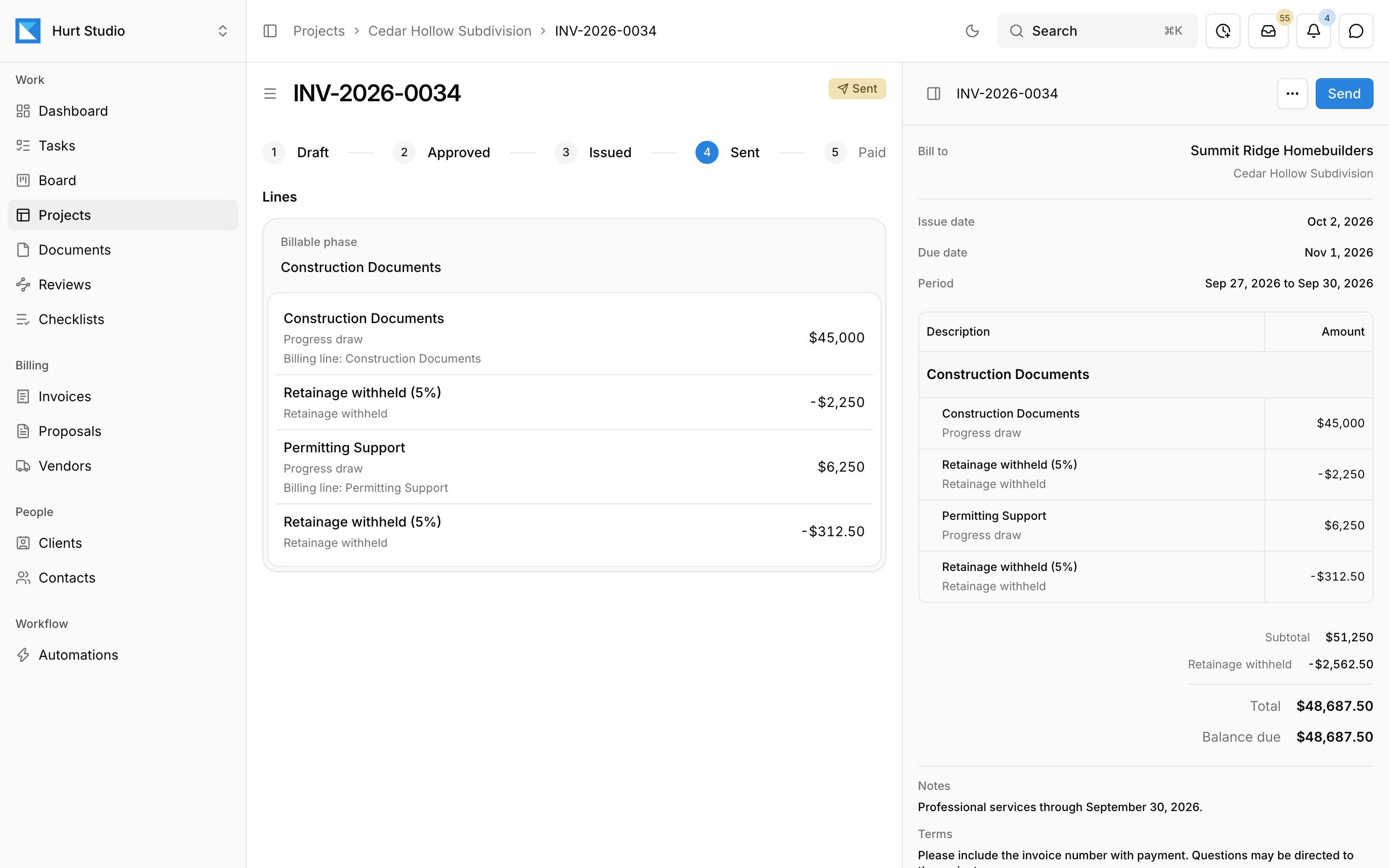
| Invoices | Drafted by phase from percent complete and approved time and expenses, with retainage and a G703-style continuation sheet. Someone on the team issues and sends each one. | Invoices from time, expenses, and estimates, with retainers and project financials. |
| Accounting | QuickBooks Online stays the ledger. Customers, invoices, credit memos, and payments sync, and payments recorded in QuickBooks update Kineo. | Invoices go to QuickBooks Online automatically, and payment and status changes in either system update both. |
| Buying | ||
| Price | $29, $49, or $79 per seat per month, with every feature on every plan. | $29 per user per month billed yearly, $34 billed quarterly, or $39 billed monthly. |
| Getting started | A 14-day free trial you start yourself, or a demo with the founder. | A full-featured free trial, and its FAQ says your first project is free. |
Email and assistants
Where email goes
- Kineo
- An address for each project, client, and contact, from any email provider. Someone on the team checks the sender and imports each message.
- Ravetree
- Exchange and Gmail integrations keep email history in Ravetree.
What happens to an email
- Kineo
- Kineo reads the message and its attachments, links it to a project, and suggests tasks, comments, and documents. Automations watching the inbox can draft change orders and proposals.
- Ravetree
- Someone turns the email into a project, task, or deal.
Assistant and AI
- Kineo
- A chat beside any screen that reads and edits projects, tasks, time, contracts, and billing drafts with the permissions of the person asking.
- Ravetree
- Summarize with AI writes a summary of a work item, using the provider and model your admin sets up with your firm's API key. A separate permission controls which members can use it.
Repeating work
- Kineo
- Rules you describe in plain language. They run when email is imported, when something happens in Kineo, on hourly workday checks, or by hand, and they draft documents, create tasks, and email your team.
- Ravetree
- Project templates, request forms, and saved file approval workflows that notify each reviewer.
Projects and reviews
Planning the work
- Kineo
- Clients, projects, phases, drawing sets, and documents with tasks, reviews, files, and history, and a board by document stage.
- Ravetree
- Agile and waterfall projects, with milestones, templates, and portfolios.
Starting a project
- Kineo
- An accepted proposal creates the client, the project, and its contract from the proposal's fee lines.
- Ravetree
- Estimates and quotes.
Time and expenses
- Kineo
- Weekly timesheets and expenses with approval, billed at effective-dated rates. The assistant can enter a week of time from a description.
- Ravetree
- Time and expense entries with approvals.
Reviewing a deliverable
- Kineo
- Reviews against your firm's checklists, routed by review workflows with reminders. Each markup is filed under the checklist item it answers, each item gets a decision, and a markup can become a task. Outside reviewers join by emailed link.
- Ravetree
- File approval workflows in stages, with team members or clients reviewing through the client portal. A rejection is explained in comments, and a new version restarts the review.
Client portal
- Kineo
- A portal for each project that shares the issued invoices, billing contracts, and fee schedules you choose. Clients sign in with a one-time code.
- Ravetree
- Client portals, which clients also use to review files in approval workflows.
Billing
Invoices
- Kineo
- Drafted by phase from percent complete and approved time and expenses, with retainage and a G703-style continuation sheet. Someone on the team issues and sends each one.
- Ravetree
- Invoices from time, expenses, and estimates, with retainers and project financials.
Accounting
- Kineo
- QuickBooks Online stays the ledger. Customers, invoices, credit memos, and payments sync, and payments recorded in QuickBooks update Kineo.
- Ravetree
- Invoices go to QuickBooks Online automatically, and payment and status changes in either system update both.
Buying
Price
- Kineo
- $29, $49, or $79 per seat per month, with every feature on every plan.
- Ravetree
- $29 per user per month billed yearly, $34 billed quarterly, or $39 billed monthly.
Getting started
- Kineo
- A 14-day free trial you start yourself, or a demo with the founder.
- Ravetree
- A full-featured free trial, and its FAQ says your first project is free.
Review drawings against your firm's checklists, with outside reviewers by link
Ravetree's file approvals send a file through saved stages, with clients reviewing through the client portal. A reviewer who rejects a file explains why in comments, and uploading a new version starts the review again.
Kineo's drawing reviews run against your firm's own checklists. Each markup is filed under the checklist item it answers, and each item gets a decision. Review workflows route each set to its reviewers, with reminders, and a markup can become a task for the person revising the sheet. Clients, agencies, and consultants review through an emailed link with the same drawings, markup tools, and checklist as your team, without an account or a seat.
Give every project, client, and contact its own email address
Ravetree connects to Exchange and Gmail, so email history sits beside your records and someone can turn a message into a project, task, or deal.
Forward or copy mail to a project's, client's, or contact's own address from any email account, so each message comes in addressed to the work it's about.
When someone on your team imports a message, Kineo reads it and its attachments, files it under the project, and, where suggestions are turned on, suggests the tasks and comments it asks for. Automations watching the inbox can draft the change order or proposal a client asks for and create a task for the project manager to check it. Every imported message also lands in one inbox for the whole firm.
Describe an automation in plain language and see each step before it runs
Pick what to watch, such as a project's inbox, an invoice, or a phase, then write when to act and what to do. Kineo lays out the steps as you type. Automations start when an email is imported, when something happens in Kineo, on an hourly check during the workday, or when you run them by hand.
They draft proposals, contracts, change orders, invoices, and credit notes, create tasks, and email the people on your team you choose. Drafts wait for someone with permission to review them, and if a step fails, the steps that succeeded are kept so you can retry the rest.
Ask Kineo's assistant to work on your project records
Ravetree's Summarize with AI writes a summary of a work item with the provider and model your firm chose.
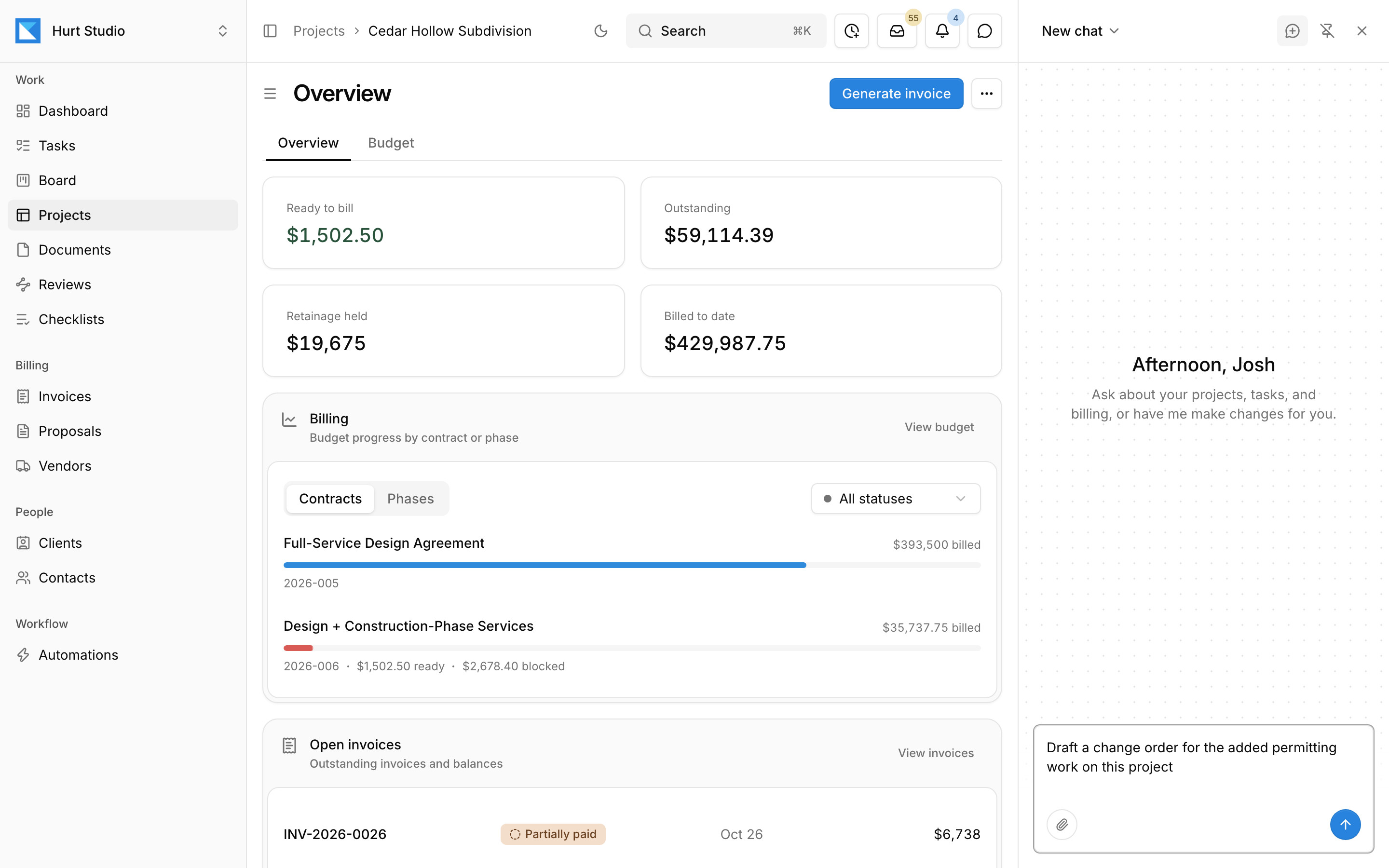
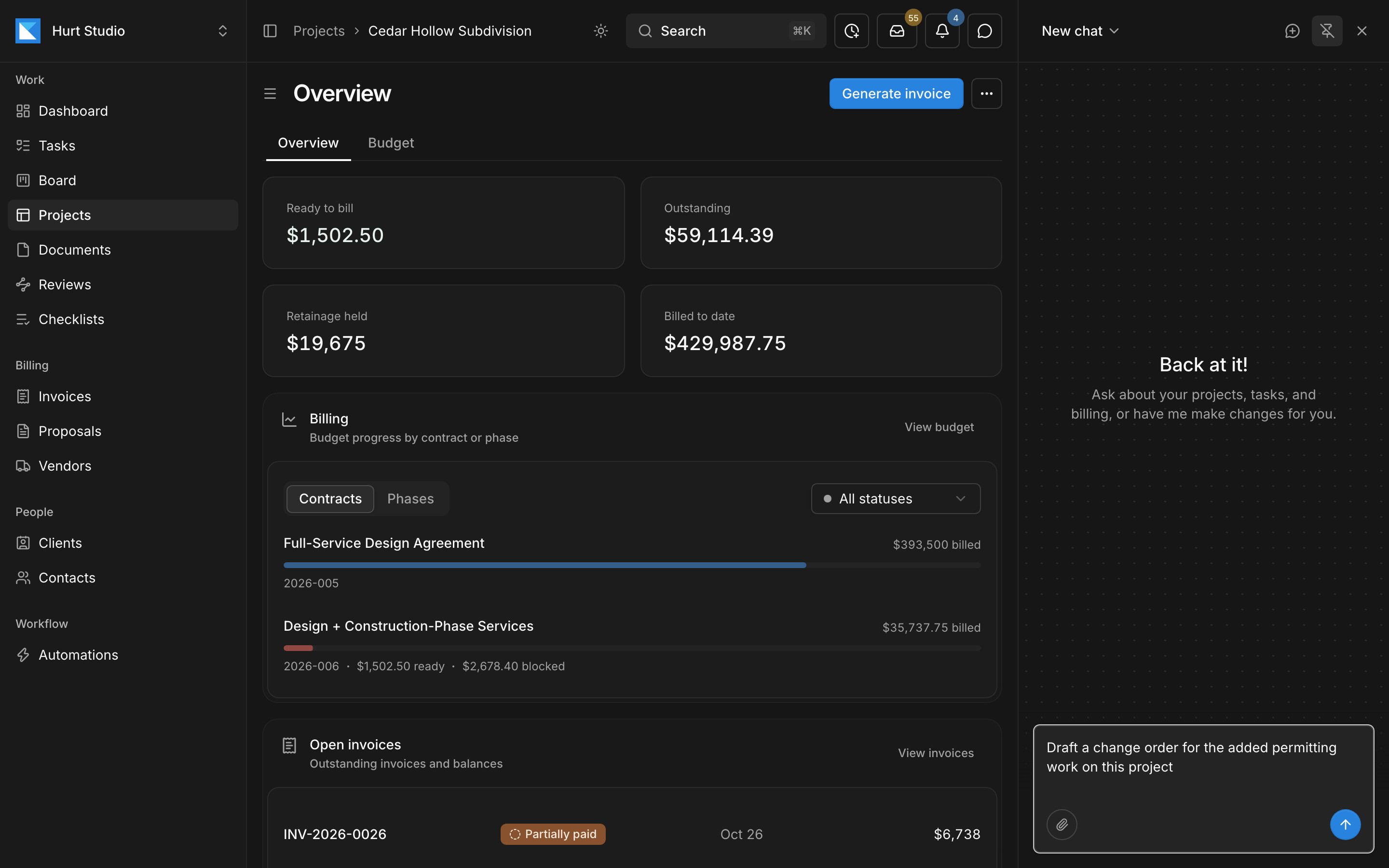
Open Kineo's assistant beside any screen and ask in plain language. It reads projects, contracts, time, and email. It can set up phases and tasks, enter a week of time, record a payment, or draft the proposal, change order, or invoice that follows from what it read, with the permissions of the person asking.
Work on Kineo from Claude, ChatGPT, or Claude Code
Kineo runs an MCP server. MCP is the open standard assistants use to connect to other software. Each person signs in with their Kineo account, and the assistant gets the same tools as Kineo's own, within that person's permissions. It can read a project's email, check the phases and fee lines on its contract, draft a change order or the month's invoice, record a payment, and enter a week of time.
In Claude Code, run claude mcp add --transport http kineo https://app.gokineo.com/mcp, then sign in from /mcp.
Bill each phase from the contract, with retainage and QuickBooks Online
When a client accepts a proposal, its fee lines become the contract. Kineo drafts each invoice by phase from percent complete and approved time and expenses, withholds retainage where the contract calls for it, and adds a G703-style continuation sheet to the PDF. Customers, invoices, credit memos, and payments sync with QuickBooks Online, which stays your ledger.
When extra work is agreed, an approved change order adjusts the contract's fee lines or phase budgets from its effective date, and the next invoice drafts from the updated contract.
What each costs
Kineo
- Team: $29 per seat per month, or $290 per seat per year
- Team Plus: $49 per seat per month, or $490 per seat per year
- Team Pro: $79 per seat per month, or $790 per seat per year
- Every feature on every plan, with more assistant usage and storage on Team Plus and Team Pro
- Outside reviewers and client portal contacts free, without a seat
- A 14-day free trial, then monthly or annual billing
Ravetree
- $29 per user per month, billed yearly at $348 per user
- $34 per user per month, billed quarterly at $102 per user
- $39 per user per month, billed monthly
- Unlimited projects, with free onboarding, training, and support
- A full-featured free trial, and its FAQ says your first project is free
- AI features run on an API key your firm supplies for Anthropic, Google, OpenAI, or xAI
Ravetree's figures come from its pricing page, FAQ, and help center, checked October 2026. Ravetree prices in US dollars. Kineo's prices are in US dollars.
Try Kineo on one project while you keep Ravetree
Run one current project in Kineo for a billing cycle, with Ravetree still running the rest of the firm, and compare the results with the people who'll use it.
- 1
Set up one project
Add a current project with its client, contract, and phases, and invite the people working on it.
- 2
Send it real email
Turn on the project's email address and forward it the next client request.
- 3
Write one automation
Describe one routine job, such as drafting a change order when a client asks for extra work.
- 4
Review the next drawing set
Route it through your checklist, with an outside reviewer if the project has one.
- 5
Bill the month
Draft the invoice and have your billing lead compare it with the one Ravetree produces.
Questions about Kineo and Ravetree
Sources
Ravetree's details come from its own website and documentation, checked October 2026. Products change, so confirm anything that matters to your decision with Ravetree.
- Ravetree pricing
- Ravetree: frequently asked questions
- Ravetree: project management software for engineers
- Ravetree: project management features
- Ravetree: integrations
- Ravetree help: AI setup
- Ravetree help: AI permissions
- Ravetree help: Summarize with AI
- Ravetree help: file approval workflows
- Ravetree help: QuickBooks
- Ravetree help: Xero
More comparisons
Try Kineo on a project you're working on now
Set up a project with its contract and phases, invite your team, and give the assistant some of the routine work. Your first 14 days are free, with every feature included.