An email address for every project, client, and contact, with one inbox for the firm
Copy or forward mail to a project's, client's, or contact's own address from any email account. When someone on your team imports a message, Kineo reads it and its attachments, matches it to a project, and suggests the tasks, updates, and comments it asks for. Automations watching the inbox can draft the change order or proposal a client is asking for.
Free for 14 days, with every feature included.
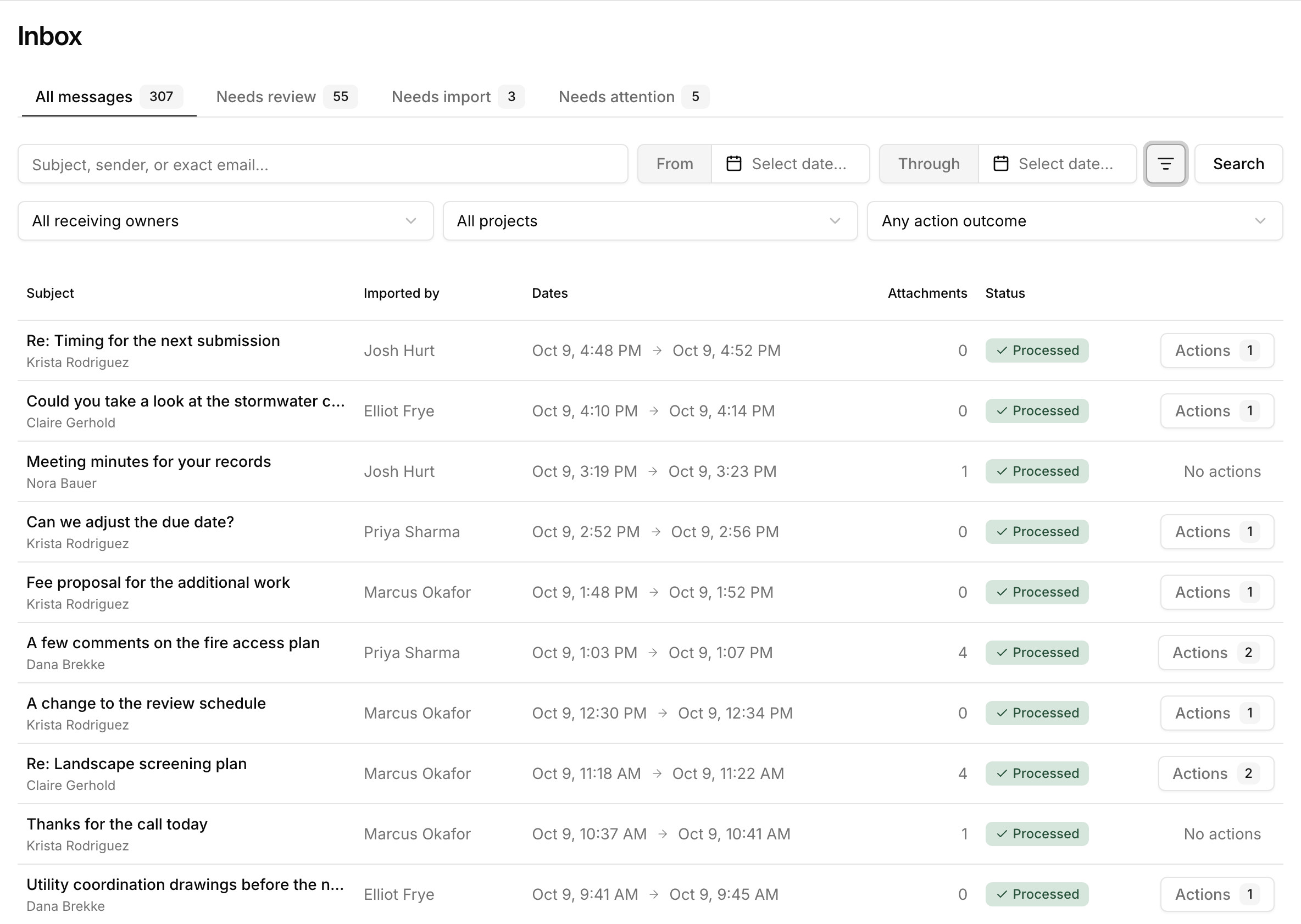
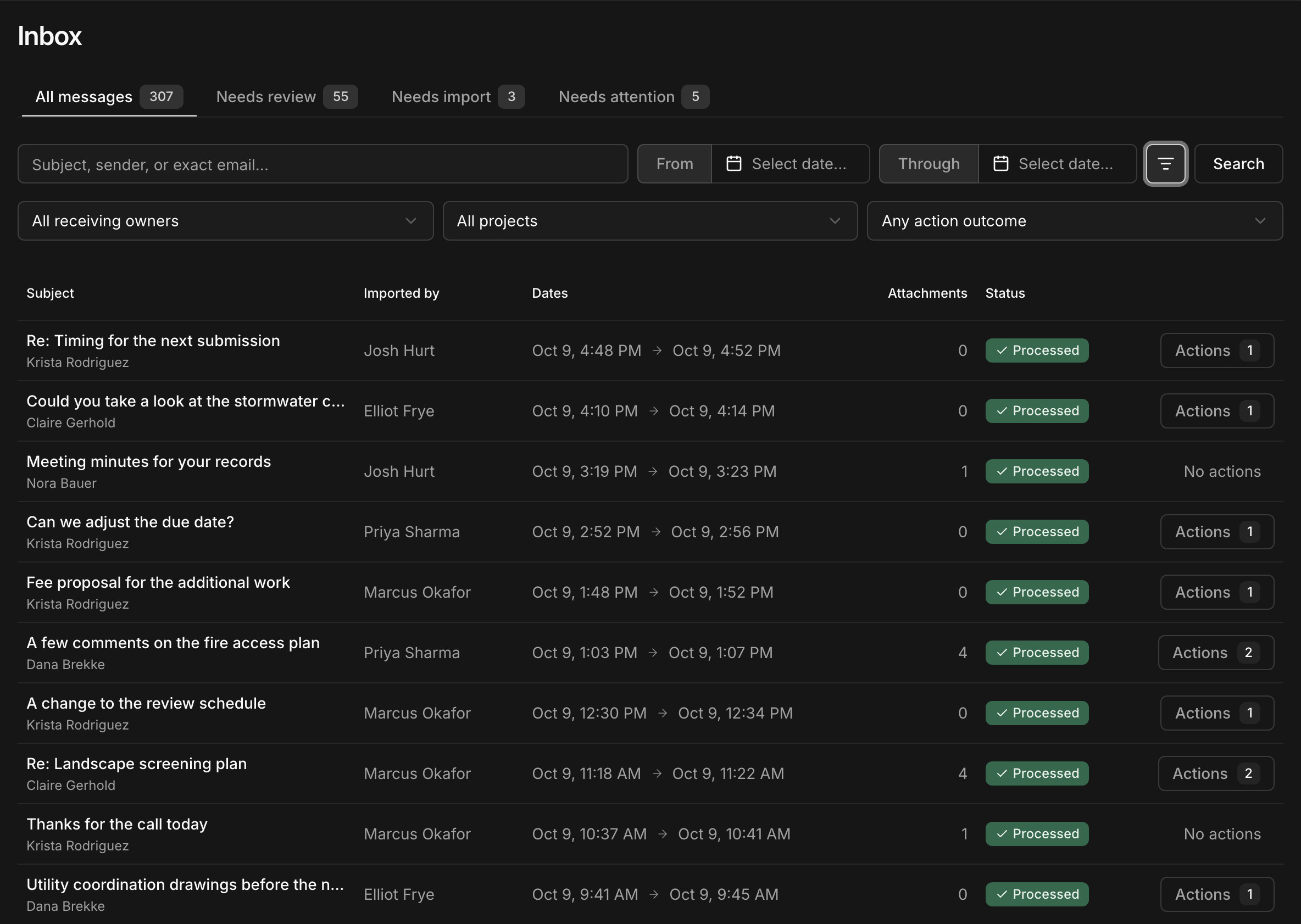
- 1Needs review lists the messages with suggested changes waiting for someone.
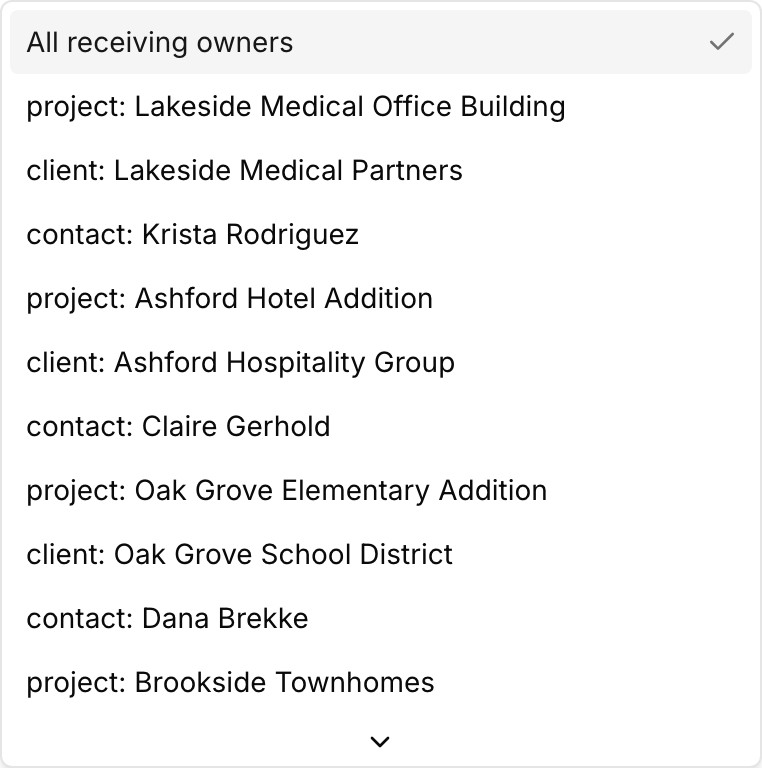
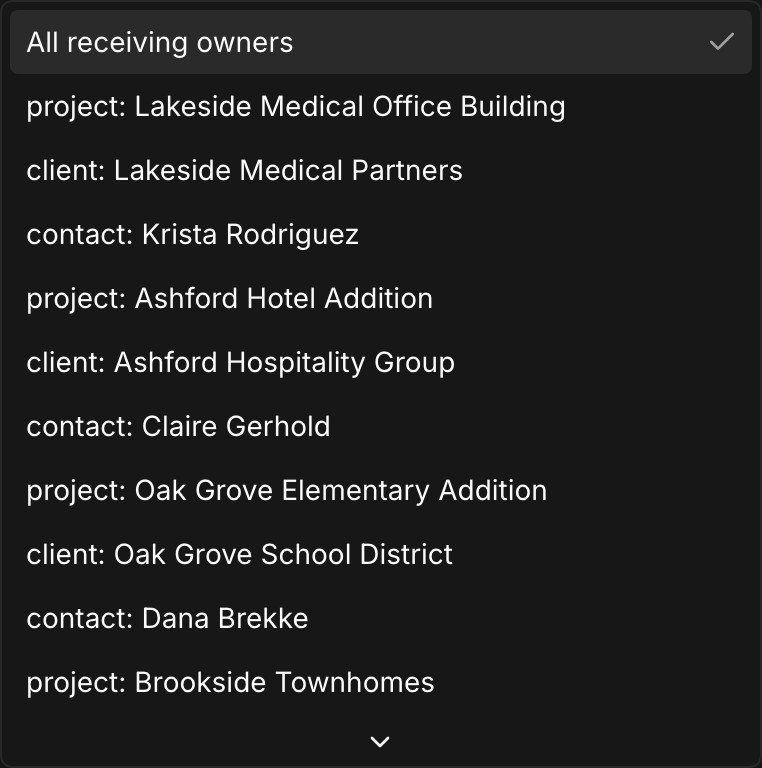
- 2Filter by the project, client, or contact address a message came to, or by project.
- 3Mail sent to any of your addresses, newest first, with who imported it.
- 4Open a message's suggested changes to apply or dismiss them.
Three kinds of address
Turn on an address from a record's Communication tab and copy it into your email.
Projects
Clients
Contacts
Every address feeds one inbox
The Inbox lists every message your team has imported, from every project, client, and contact address you can see. Tabs show what has suggestions to review, what's waiting to be imported, and what needs attention. Filter by the address a message came to, the project, or what happened to its suggestions, or search by subject and sender.
Each project, client, and contact also has a Communication page with its own mail. The Today dashboard lists messages with suggested updates, and the Inbox icon in the header shows how many are waiting.
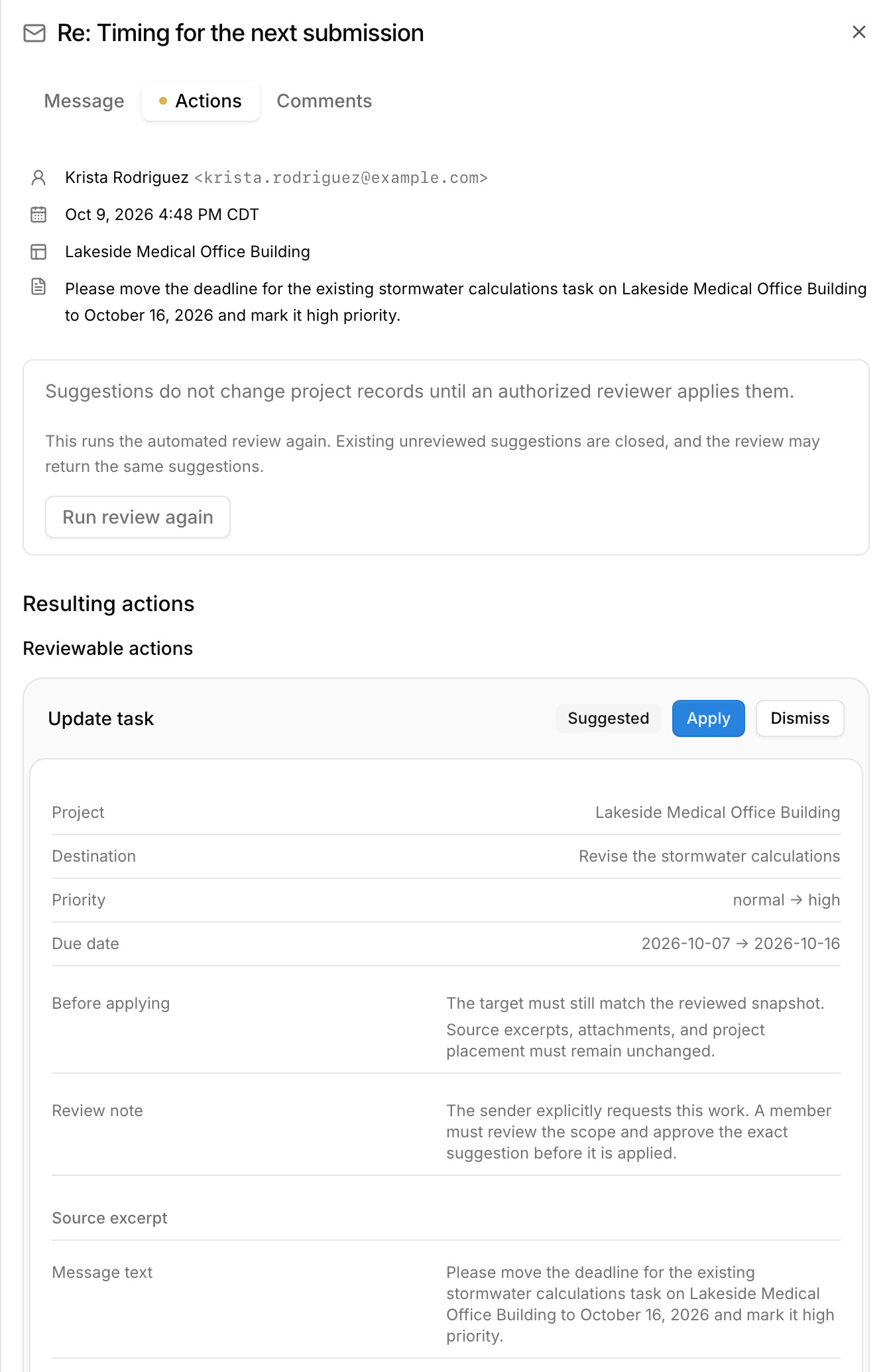
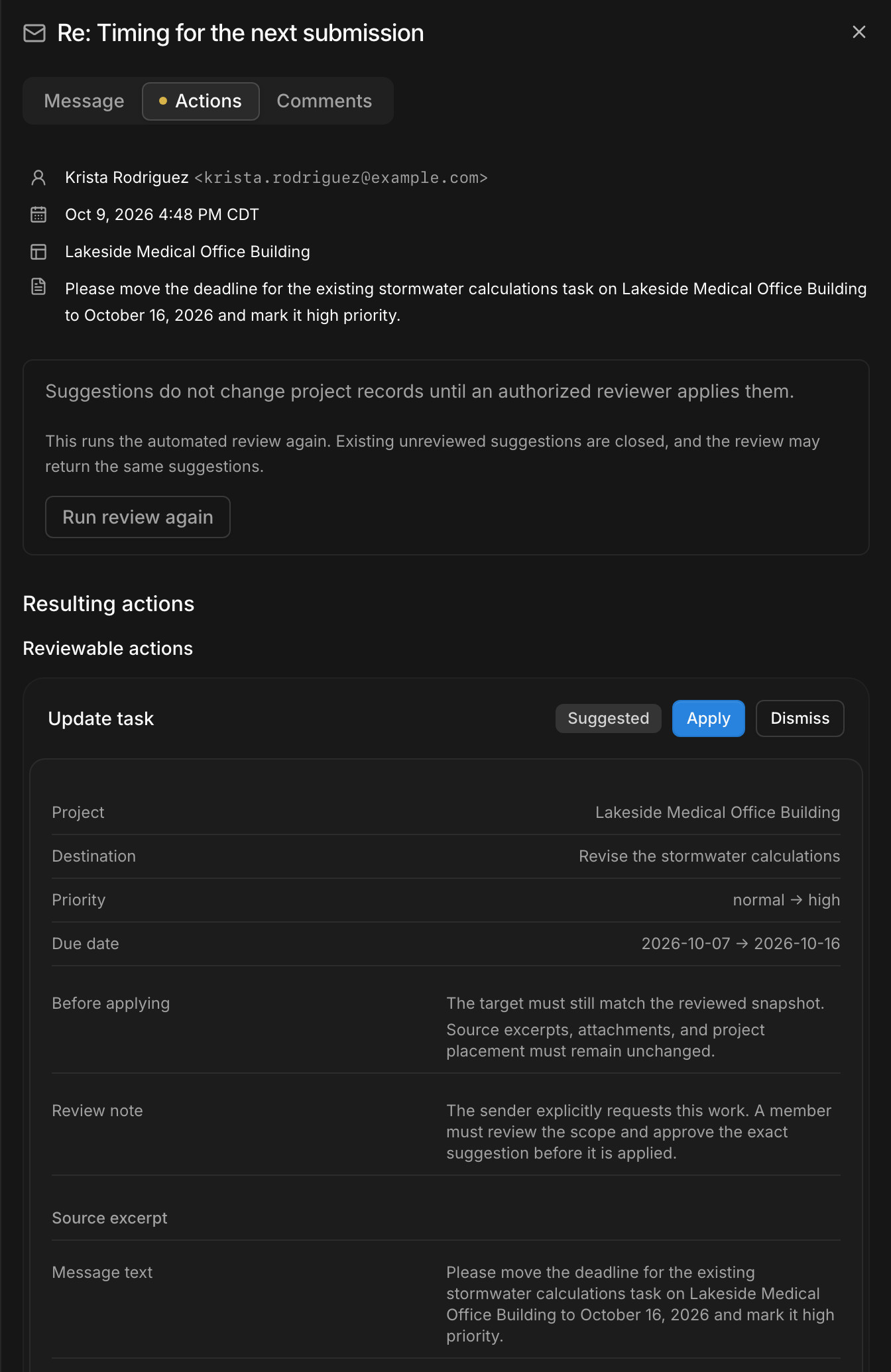
Each suggestion shows exactly what would change
Kineo reads the message and its attachments, including PDFs, images, and spreadsheets, and suggests new tasks, changes to existing tasks, comments, and documents to add. Each suggestion shows the project, the values before and after, and the lines of the email it came from.
Someone on your team applies it or dismisses it. When an applied suggestion changes a task, Kineo sends a notice that links the task to the email it came from.
Turn requests into change orders, proposals, and tasks
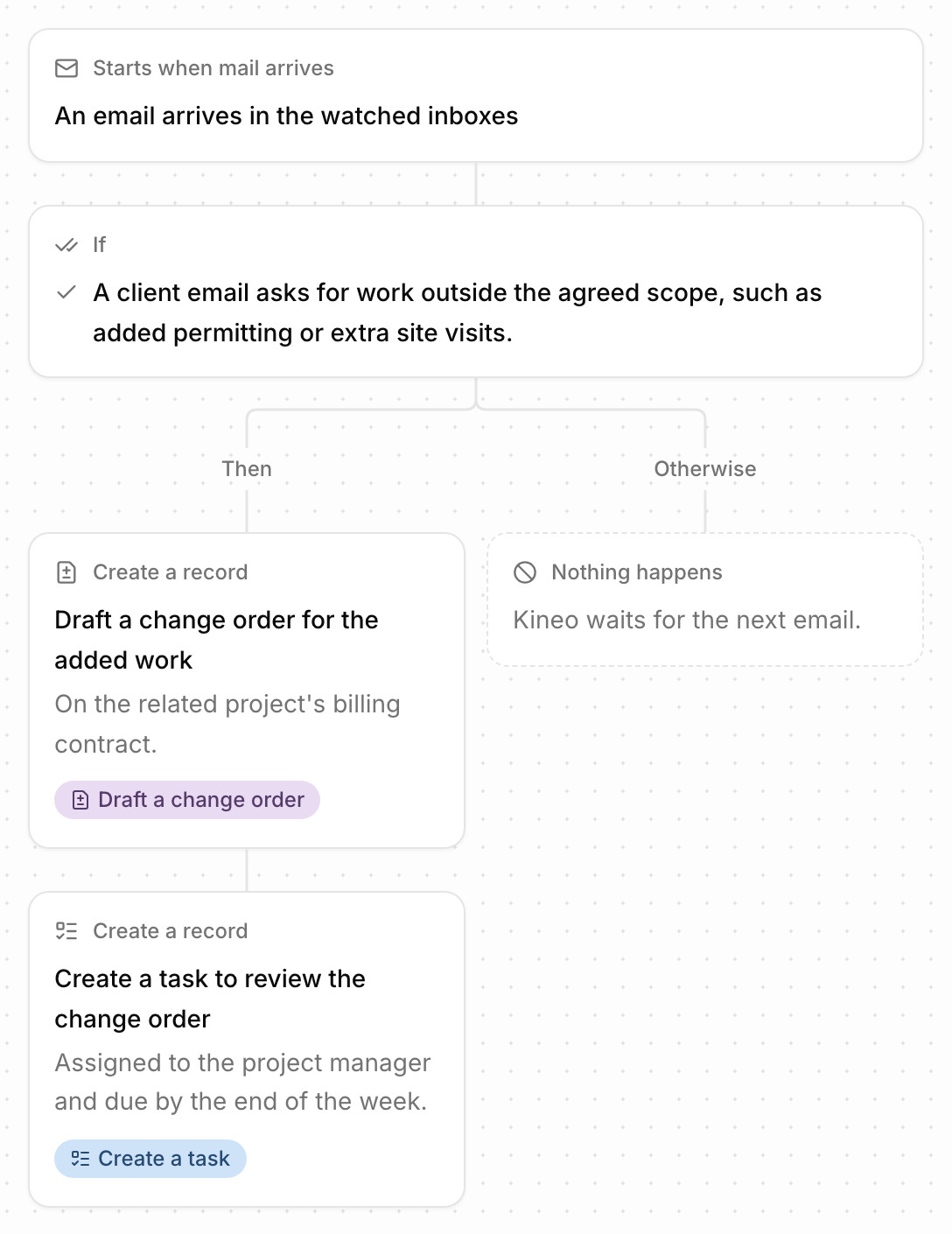
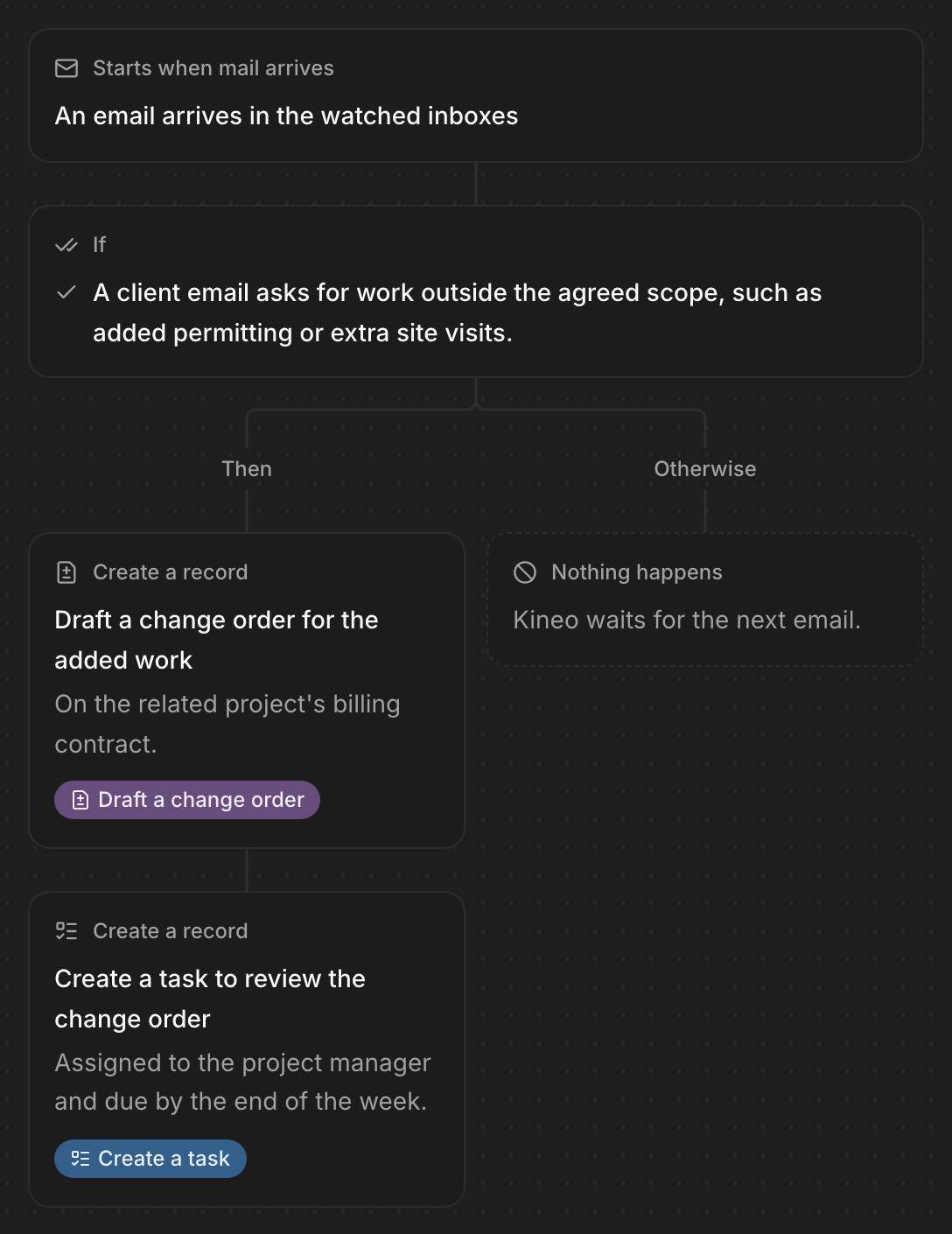
An automation can watch project, client, or contact inboxes. When a message matches what you describe, it reads the whole thread and its attachments, and it can:
- Draft a change order when a client asks for work outside the agreed scope
- Draft a proposal when someone asks for a fee for added work
- Create a task for the project manager, with a due date
- Email someone on your team a summary of the request
Drafts wait for your team to review and send.
What happens to an email
- 1
Sent to an address
Someone sends, copies, or forwards a message to a project's, client's, or contact's address.
- 2
Imported
Someone on your team checks the sender and imports it. Until then, it waits under Needs import.
- 3
Read
Kineo reads the message and its attachments, summarizes it, links it to a project, and runs any automations watching the inbox.
- 4
Suggested
If the email asks for something, Kineo suggests tasks, task changes, comments, and documents, each with its reasons.
Suggested - 5
Applied
Someone on your team applies or dismisses each suggestion.
Applied
Search every message
Ask the assistant about it
Talk it over
Common questions
Try Kineo on a project you're working on now
Set up a project with its contract and phases, invite your team, and give the assistant some of the routine work. Your first 14 days are free, with every feature included.