Track every task on the project and drawing it belongs to
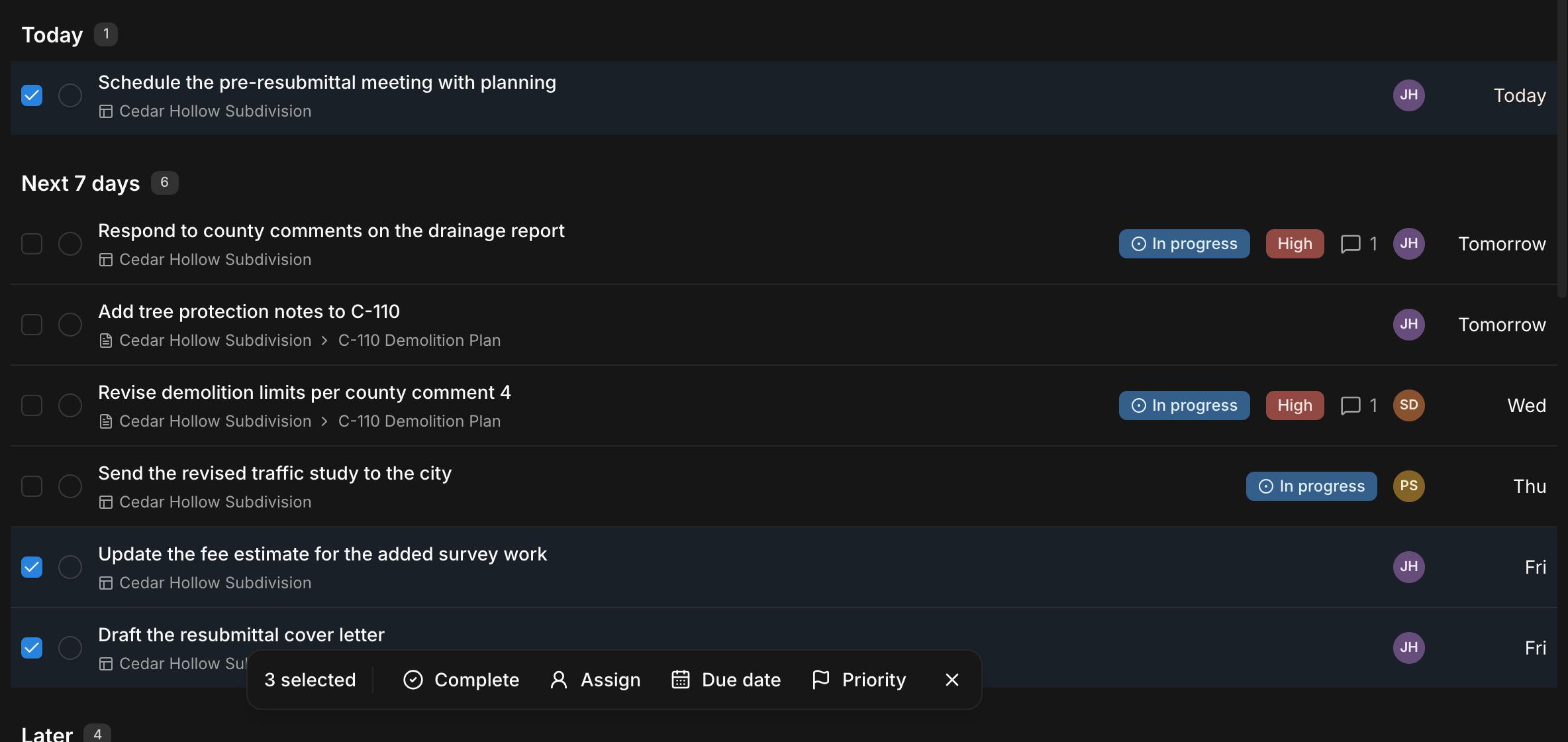
Each task sits on its project or on a specific document, with an assignee, due date, priority, and comments. The Tasks page puts everything assigned to you in one list, grouped by when it's due, and owners, admins, and project managers can see every task in the firm.
Free for 14 days, with every feature included.

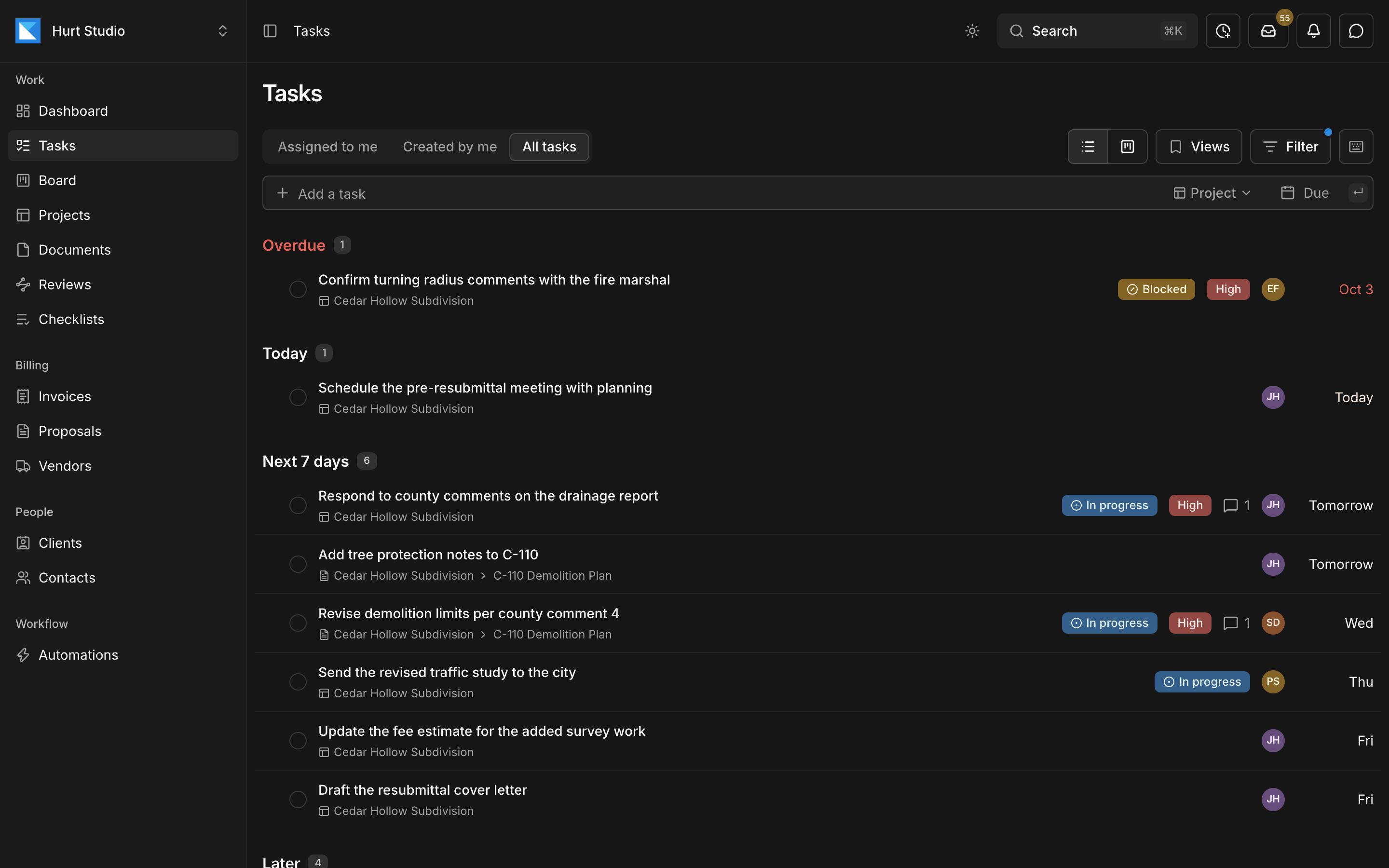
- 1Your tasks, the ones you created, and for managers, every task in the firm.
- 2Tasks are grouped by when they're due, starting with anything overdue.
- 3Status, priority, comments, assignee, and due date on every row.
- 4Each task names its project, and the drawing or document it's attached to.
Separate task apps don't know which drawing a task is about
When tasks live in their own app, nobody sees them next to the drawings, the phases, or the hours, and someone has to copy them over from client email. In Kineo, each task sits on the project or document it's about, next to the work and the billing.
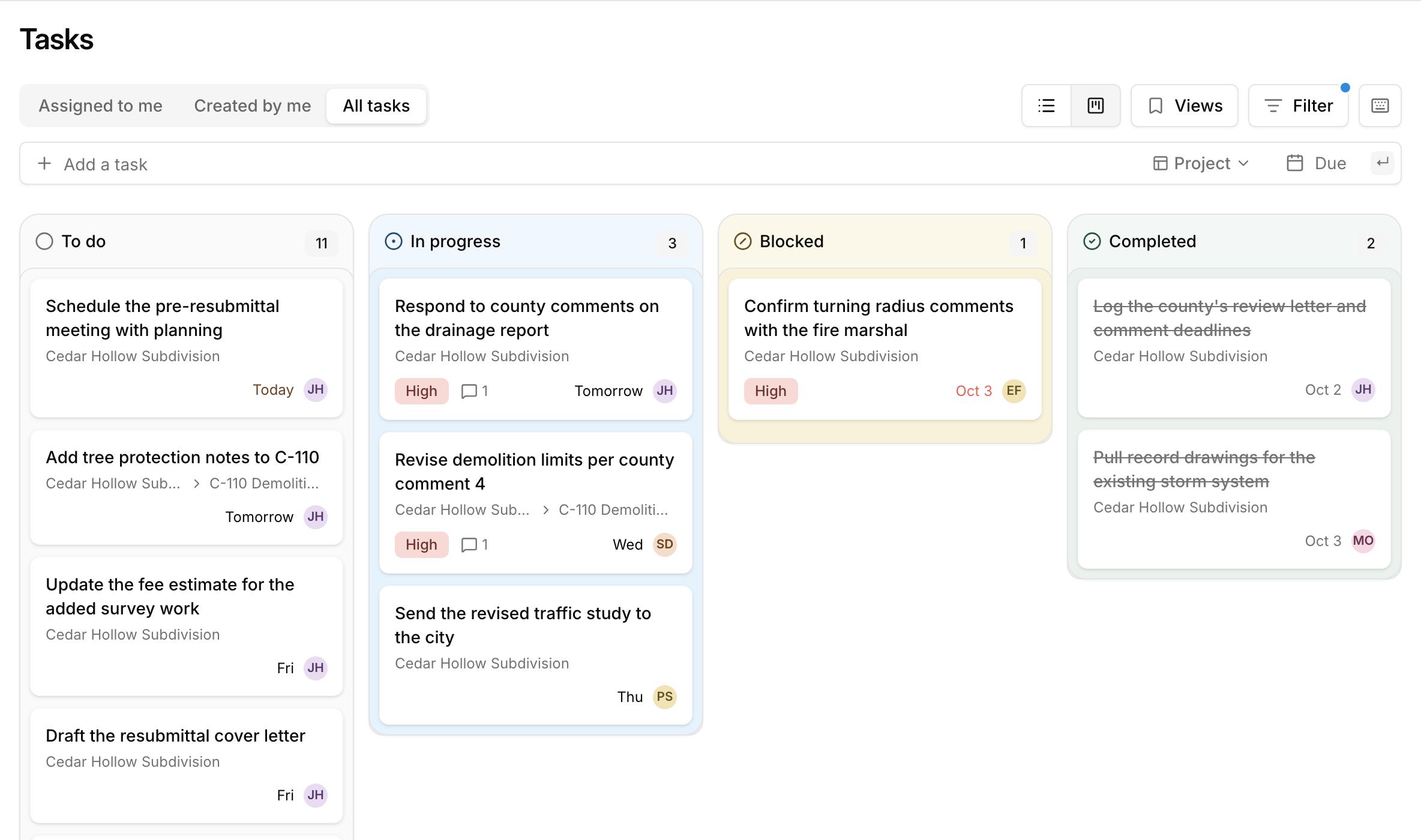
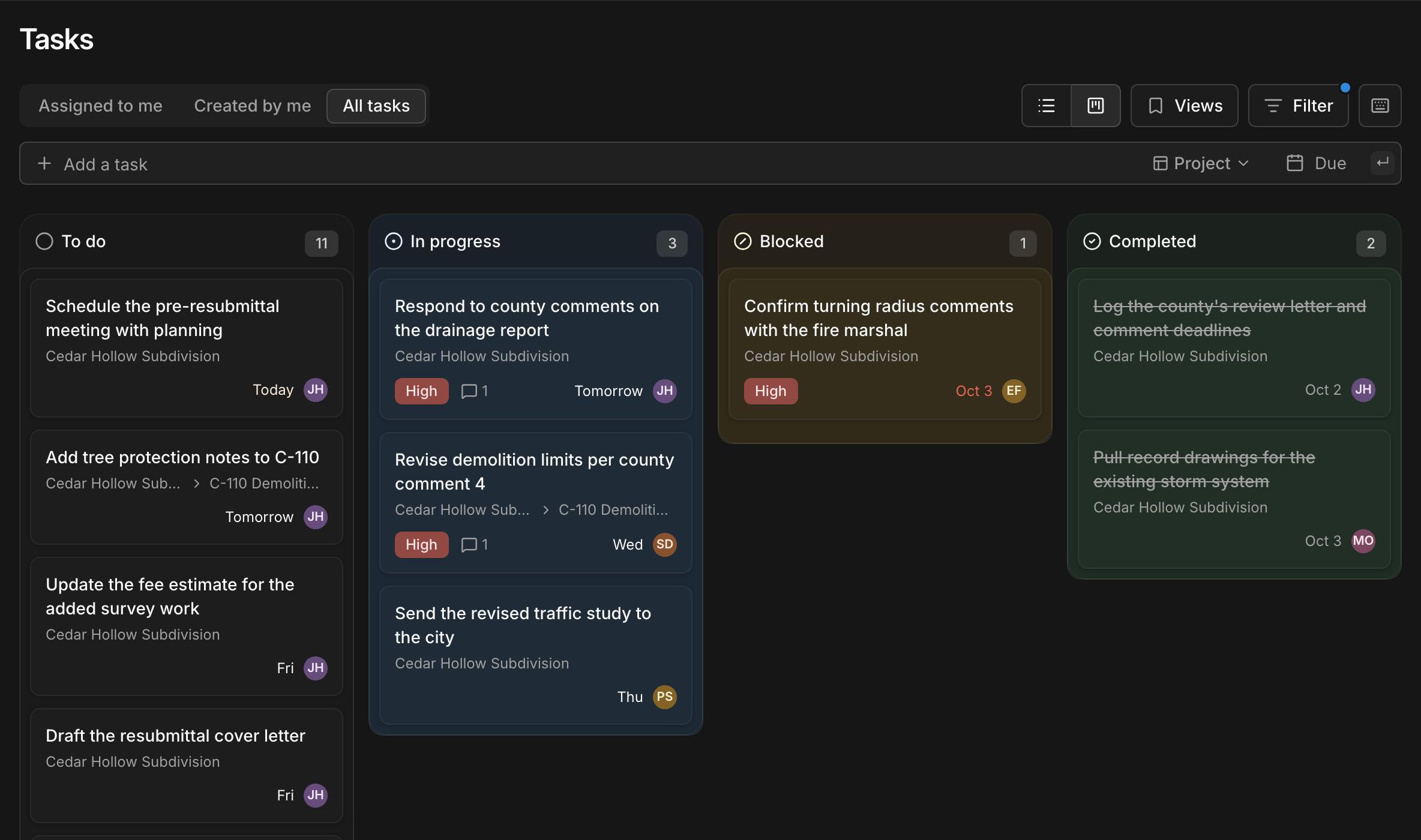
Switch to a board and drag tasks by status
The same tasks in To do, In progress, Blocked, and Completed columns. Drag a card to change its status, and undo it if you drop a task in Completed by mistake.
Edit a task in place and see its whole history
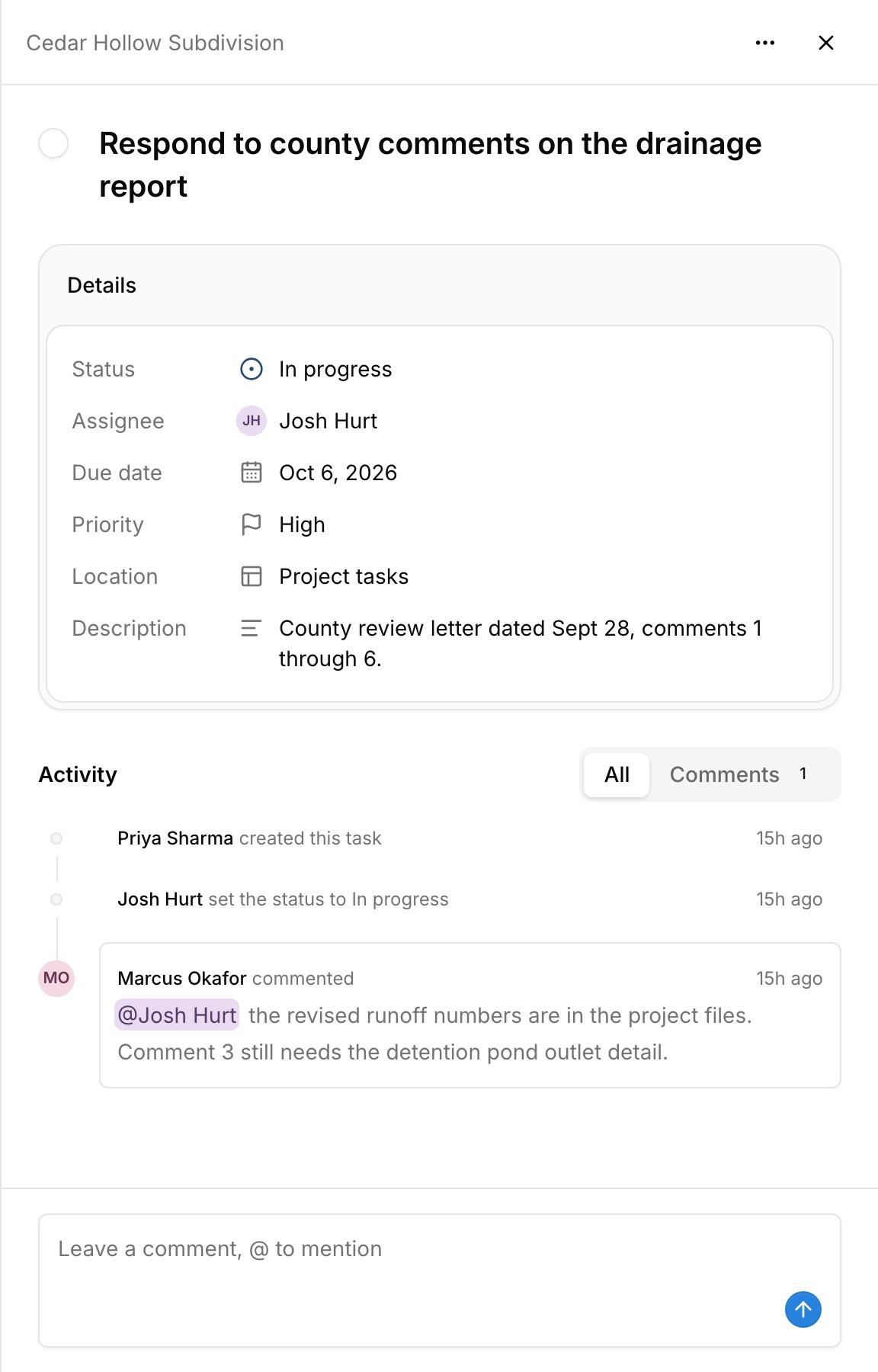
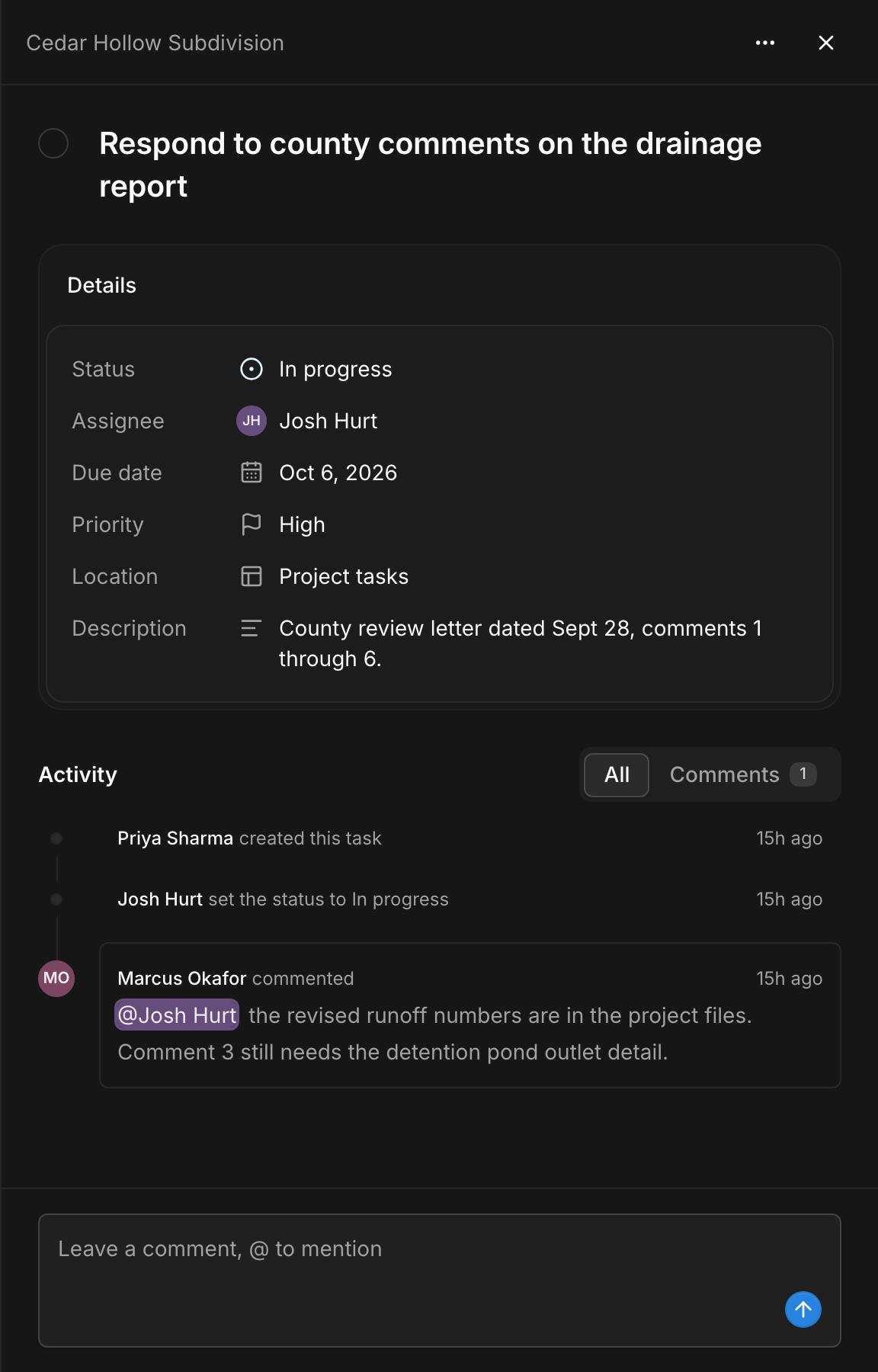
Change the title, status, assignee, due date, priority, and description right where they are, and changes save as you go. Move a task between the project and any of its documents.
The activity timeline shows comments alongside every change, and marks the changes the assistant made.
A task opens in a panel over whatever page you're on, from notifications, search, the dashboard, or any task list, and a link to a task opens it the same way.
Change many tasks at once
Select tasks with a click, or with X from the keyboard, then complete, reassign, reschedule, or reprioritize them together. Filter the list by project, assignee, priority, or status, and save the views you come back to.

Notifications and @mentions
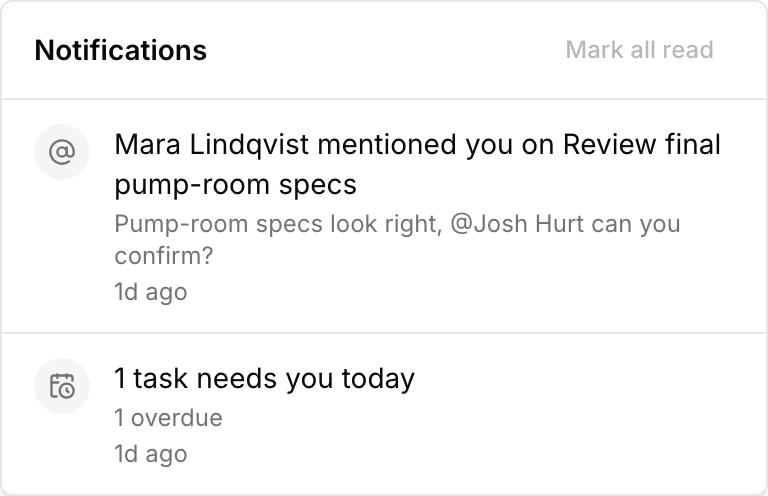
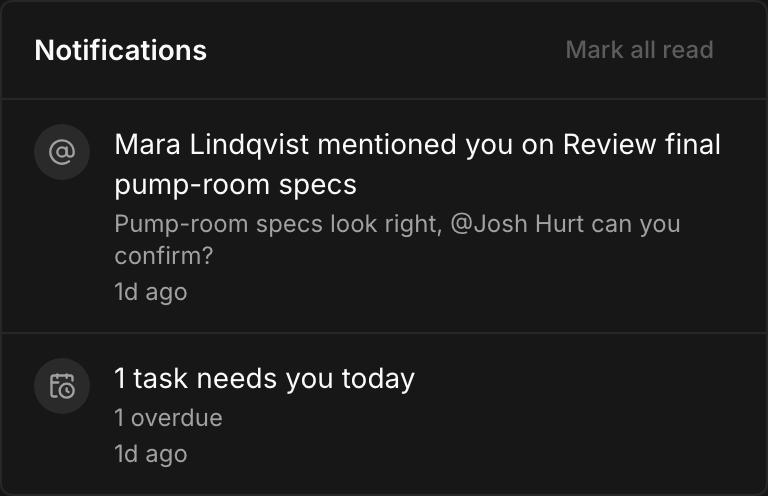
The bell in the header shows when you're assigned a task, mentioned in a comment, or someone comments on your task, and the same notices go out by email. Mention a teammate with @ in any task, document, or file comment.
At 7 each morning, anyone with tasks overdue or due that day gets one email listing them.
Keyboard shortcuts
Dates in plain words
Tasks from review markups
Any markup in a review can become a task. The task links back to the markup and reopens the review centered on it.
Tasks from client email
When a client asks for something by email, the assistant suggests the task, and someone on your team applies it.
Common questions
Try Kineo on a project you're working on now
Set up a project with its contract and phases, invite your team, and give the assistant some of the routine work. Your first 14 days are free, with every feature included.